What the route planner does
It’s easy to plan a day in the order you thought of things – and then zig-zag across a city. The route planner looks at every stop on that day with a map location and works out an order that cuts the travel between them.
Before anything changes, you see a before-and-after summary – for example “Now 1 hr 12 min · 8.3 km → 34 min · 4.2 km” – and the new order, with moved stops highlighted. Tap Apply to use it, or Cancel to keep your own. If you apply and regret it, Undo is right there in the confirmation.
Fixed times stay fixed
Some stops can’t move: a 10:00 tour, a dinner reservation, a timed museum entry. With Keep fixed times on (the default), timed stops stay anchored and only the flexible stops between them are reordered. In practice that usually means the untimed stops after your last booked slot.
Turn Keep fixed times off and timed stops can swap time slots with each other, each keeping its own duration. If there’s nothing to improve – fewer than three located stops, every stop timed, or the day is already in the quickest order – the route planner tells you why instead of failing quietly.
Walking a city, or driving a park
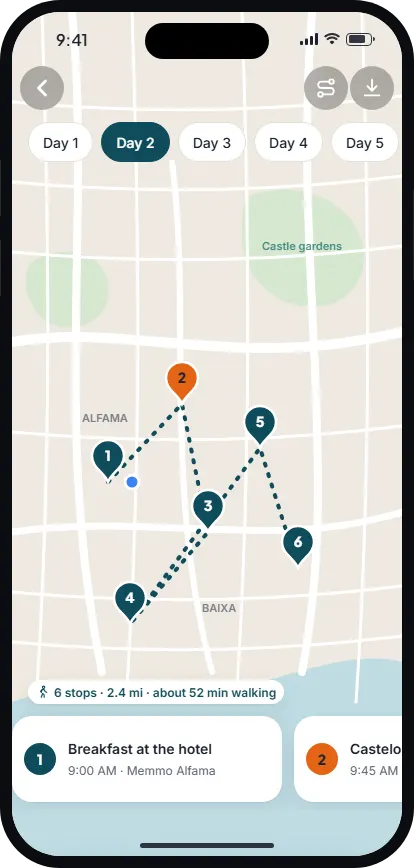
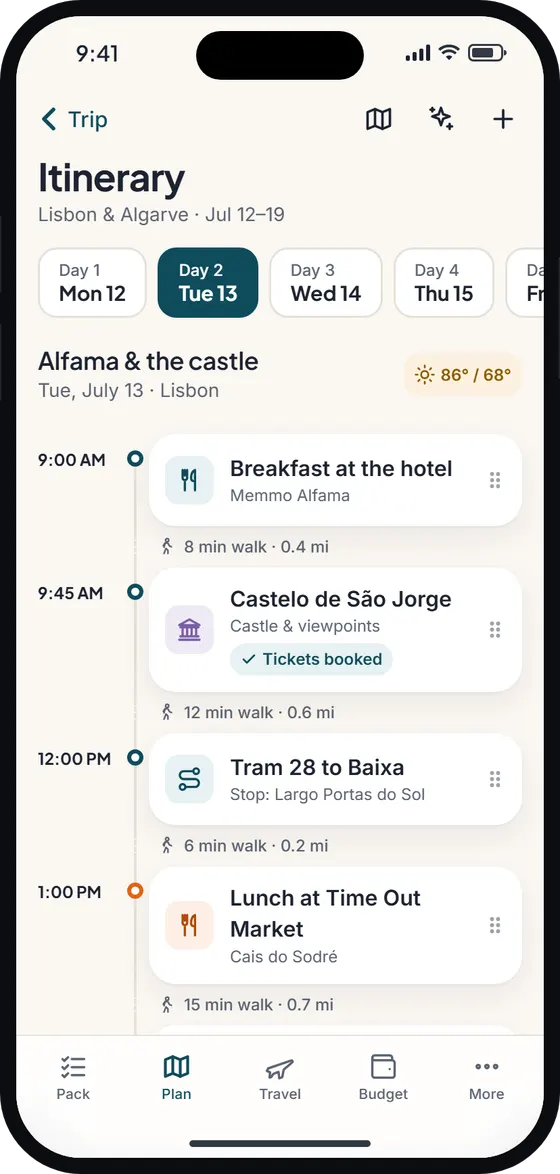
On a Lisbon day, the route planner might reorder a castle, a viewpoint, a tram stop and a pastry shop so you stop doubling back across town. Your itinerary then shows walking times between each stop, and the map numbers them in order.
On a Yosemite road trip, the same tool orders trailheads and viewpoints by driving distance. Use it alongside the road trip planner checklist to sort fuel, snacks and offline backups.
Online and offline
When you’re online, Wayfold uses live travel times for days with up to six stops. Offline, it falls back to straight-line distance estimates, so you can still tidy a day on the plane or in a park with no signal.
Export to Google Maps, Apple Maps or KML
- Open day in Google Maps: builds a directions link with every stop as a waypoint. It picks walking when every hop is under 2 km (about 1.2 miles), otherwise driving, and splits long days into parts when there are more stops than Google Maps accepts at once.
- Open in Apple Maps (iPhone): opens directions leg by leg.
- Export all places (KML): writes one folder per day plus your Places to visit wishlist, then opens the share sheet. The file imports into Google My Maps.
Turn-by-turn navigation happens in your maps app; Wayfold plans the order and keeps it with the rest of your trip.
Free, and part of your plan
The route planner and the map exports are free. They work on the same itinerary that drives your packing list, so reordering a day never loses a booking, a note or the gear you’ve linked to an activity.
Wayfold is coming soon to iPhone and Android.
Questions about the route planner
Does the route planner work offline?
Yes. Offline it uses straight-line distance estimates; online it uses live travel times for up to six stops. Opening the day in a maps app needs that app’s own connection or offline maps.
Will it move my booked or timed activities?
Not with Keep fixed times on. Timed stops stay anchored and only the flexible ones move. Turn it off to let timed stops swap slots, each keeping its duration.
Can I export my trip to Google Maps?
Yes. Open any day as Google Maps directions, or export every place as a KML file with a folder per day, which imports into Google My Maps.
Is the route planner free?
Yes, the route planner and all the map exports are part of the Free plan.